

Every year, California nonprofits lose potential donors, volunteers, and community partners simply because their contact forms are confusing, inaccessible, or legally non-compliant. A broken or generic form sends a quiet but damaging message: that your organization is not ready to engage. The good news is that setting up a professional, compliant, and conversion-friendly contact form is entirely achievable, even without a large technical team. This guide walks you through every step, from understanding California’s privacy requirements to testing for accessibility and maximizing donor engagement.
Table of Contents
- Requirements and considerations for California nonprofits
- Choosing the right contact form tools
- How to embed and configure your contact form
- Testing your contact form for accessibility and engagement
- Why most nonprofits miss the mark on contact forms—and how to excel
- Get expert help with nonprofit contact forms and website design
- Frequently asked questions
Key Takeaways
| Point | Details |
|---|---|
| Legal compliance is essential | California nonprofits must align contact forms with CCPA/CPRA privacy rules to protect themselves and their users. |
| Choose the right tools | Select form solutions that are easy to embed, customizable, and offer robust spam protection for donor trust. |
| Prioritize accessibility | Routine accessibility checks and thoughtful form design can boost engagement and inclusivity. |
| Test for reliability | Regular testing ensures your form works as intended for all users, minimizing missed messages. |
Requirements and considerations for California nonprofits
Building on the importance of effective communication, let’s start with the core requirements and key considerations you must know before adding a contact form to your website.
California has some of the most rigorous data privacy laws in the country. If your nonprofit collects personal information through a website contact form, you likely have obligations under the California Consumer Privacy Act (CCPA) and its amendment, the California Privacy Rights Act (CPRA). These laws apply to many nonprofits depending on size, revenue, and data handling volume. For California privacy obligations, nonprofits that are CCPA/CPRA-covered should implement core CCPA requirements such as a Privacy Policy, “notice at collection,” support for consumer rights requests, and, if applicable, a “Do Not Sell My Personal Information” mechanism.
What does this mean practically? Every contact form on your website should include a visible notice telling visitors what data you collect and why. A simple line like “We collect your name and email to respond to your inquiry. See our Privacy Policy for details” satisfies the notice at collection requirement. This is not optional if your nonprofit qualifies as a covered business.
Beyond privacy, accessibility is a legal and ethical priority. The Americans with Disabilities Act (ADA) and California’s Unruh Civil Rights Act both require that digital content, including web forms, be usable by people with disabilities. Following nonprofit website best practices means ensuring your form fields have proper labels, sufficient color contrast, and keyboard navigability. An accessibility statement for nonprofits on your site signals your commitment and can reduce legal risk.
Trust is also a major factor in whether a visitor actually fills out your form. Consider these elements that build credibility:
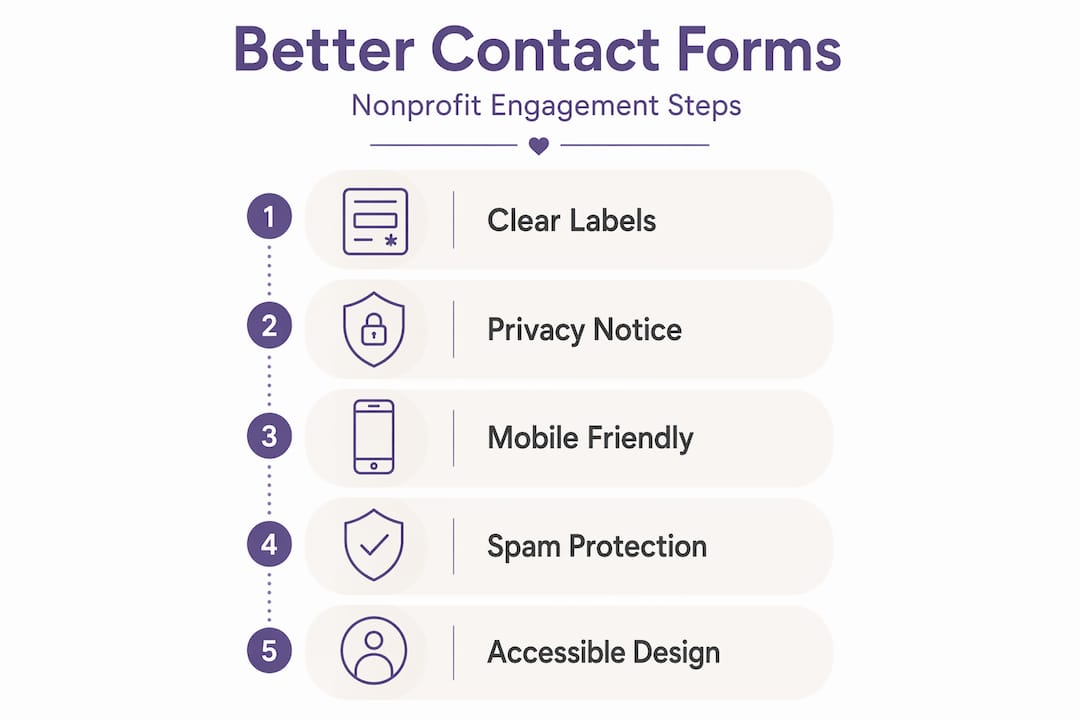
- Visible privacy notice linked to your full Privacy Policy
- Secure connection (HTTPS) displayed in the browser address bar
- Clear form labels that explain exactly what information is needed
- Confirmation message after submission so users know their message was received
- Contact alternatives such as a phone number or mailing address nearby
Here is a quick comparison of what a compliant, trust-building form includes versus a basic form:
| Feature | Basic form | Compliant and engaging form |
|---|---|---|
| Privacy notice | None | Visible notice at collection |
| Accessibility labels | Missing or vague | Clear, screen-reader-friendly labels |
| HTTPS security | Sometimes | Always |
| Spam protection | None | Enabled (CAPTCHA or Akismet) |
| Confirmation message | None | Automatic thank-you message |
| Mobile responsiveness | Inconsistent | Fully responsive |
A notable insight: Studies consistently show that forms with clear labels and visible privacy notices see significantly higher completion rates. Donor trust is not just a soft concept. It directly affects how many people actually reach out to your organization.
Investing in website design for nonprofits that prioritizes these elements from the start saves you from costly retrofits later.
Choosing the right contact form tools
Once requirements are clear, the next step is selecting a form solution that fits your nonprofit’s workflow and compliance needs.
Not all form tools are created equal, and the right choice depends on your technical capacity, budget, and integration needs. Here is a breakdown of the most common options for California nonprofits:
| Tool | Cost | Ease of use | Spam protection | CRM integration |
|---|---|---|---|---|
| Google Forms | Free | Very easy | Limited | Manual export |
| WordPress plugins (e.g., WPForms, Gravity Forms) | Free to paid | Moderate | Strong (Akismet) | Extensive |
| Custom HTML forms with API | Varies | Technical | Configurable | Full control |
| Third-party platforms (Typeform, Jotform) | Free to paid | Easy | Moderate | Good |
Google Forms is a popular starting point for nonprofits with limited budgets. If you use Google Forms as the backend for a nonprofit contact form, the standard embedding approach is to use the HTML iframe snippet available under the Send button in Google Forms. This gets you a working form in minutes. However, Google Forms has limited branding options and no built-in spam filtering, which can become a problem as your site traffic grows.
WordPress-based plugins offer the best balance of flexibility and control for most nonprofits. They support conditional logic, file uploads, multi-step forms, and deep integration with donor management systems. For spam protection, Akismet integration can filter submissions via an API and provide logs and whitelisting, which is essential for any public-facing form.

Pro Tip: Before choosing a form tool, map out exactly where submissions need to go. If you want inquiries routed to your CRM, volunteer coordinator, and executive director simultaneously, you need a tool that supports conditional email routing. Many nonprofits discover this gap only after they have already launched their form.
Key features to prioritize when evaluating tools:
- CAPTCHA or honeypot spam protection to reduce junk submissions
- Email notifications to your team when a form is submitted
- Auto-responder emails to confirm receipt for the person who submitted
- Field validation to catch errors before submission
- Mobile-friendly design that works on all screen sizes
- GDPR and CCPA-friendly settings for data storage and deletion
Branding matters more than most nonprofits realize. A form that looks completely different from your website undermines the professional image you have worked to build. Custom plugins allow you to match fonts, colors, and button styles to your existing brand, reinforcing donor confidence at every touchpoint. This is a core principle behind strong donation funnel strategies: every element of your website, including your contact form, should feel like a seamless part of your mission.
If you are unsure which tool fits your needs, our web design services include form setup and configuration tailored specifically for nonprofits.
How to embed and configure your contact form
With tool selection made, here’s how to actually set up, configure, and verify your contact form step by step.
Follow these steps to embed and configure a contact form that is both functional and compliant:
-
Create your form in your chosen tool. Add fields for name, email, subject, and message at minimum. For nonprofits, consider adding a dropdown for inquiry type (Volunteer, Donation, General Inquiry, Media) to route submissions more efficiently.
-
Enable spam protection. If you are using a WordPress plugin, activate Akismet or enable a CAPTCHA field. For Google Forms, consider adding a verification question or using Akismet spam protection through a middleware integration.
-
Add a privacy notice. Place a short statement directly above or below the submit button. Link it to your full Privacy Policy page. This satisfies the CCPA notice at collection requirement.
-
Configure email notifications. Set up automatic notifications to the appropriate staff member or team. Use conditional logic if different inquiry types should go to different people.
-
Set up a confirmation message. After submission, show a thank-you message on screen and send an auto-responder email. This reassures the user and reduces duplicate submissions.
-
Embed the form on your website. For Google Forms, copy the iframe code from the Send menu and paste it into your page’s HTML editor. For WordPress plugins, use the provided shortcode or block. For mission-driven website design, the form should sit within your page layout, not in a separate pop-up that can feel intrusive.
-
Test the form thoroughly. Submit a test entry, verify the notification email arrives, check the auto-responder, and confirm the submission appears in your form dashboard.
“A contact form is often the first real interaction a potential donor has with your organization. Make it feel welcoming, clear, and trustworthy from the very first field.”
Common mistakes nonprofits make during setup include forgetting to test on mobile devices, using placeholder text instead of proper field labels (which breaks screen reader compatibility), and failing to set up email notifications at all. That last mistake means submissions sit unread in a dashboard nobody checks.
For ongoing guidance and practical advice, the web design tips on our blog cover form configuration, accessibility, and engagement strategies in detail.
Testing your contact form for accessibility and engagement
After setup, it’s critical to verify that your contact form is accessible and inviting to all visitors.
Testing is not a one-time task. It should happen at launch, after any site update, and at least once per quarter. Here is a structured checklist to guide your review:
- Color contrast: Use a free tool like WebAIM’s Contrast Checker to verify that your form labels and button text meet WCAG 2.1 AA standards (a contrast ratio of at least 4.5:1 for normal text).
- Keyboard navigation: Tab through every form field using only your keyboard. Every field, dropdown, and button should be reachable and usable without a mouse.
- Screen reader compatibility: Test with a free screen reader like NVDA (Windows) or VoiceOver (Mac/iOS) to confirm that field labels are announced correctly.
- Mobile responsiveness: Open your form on at least two different mobile devices or use browser developer tools to simulate various screen sizes.
- Error messages: Trigger validation errors intentionally and confirm that error messages are clear, specific, and positioned near the relevant field.
- Form submission speed: Time how long the page takes to load with the form embedded. Slow load times directly reduce completion rates.
- Confirmation flow: Submit a real test entry and verify both the on-screen confirmation and the auto-responder email.
For accessibility and trust, nonprofit web design guidance emphasizes using tools like contrast checking and ensuring core functions work reliably, with contact and form placement supporting engagement throughout the site.
Placement strategy matters enormously for engagement. A contact form buried in a footer or on a page three clicks deep will receive far fewer submissions than one placed prominently. Best practices suggest:
- Homepage: Include a brief contact section or a link to your contact page in the hero area or navigation.
- Dedicated contact page: This should be accessible from your main navigation with a label like “Contact Us.”
- Program and service pages: Add a short inquiry form or a clear call-to-action linking to your contact page at the bottom of each program description.
- Donation confirmation page: After a donor gives, offer a contact form to ask questions or learn more about your work.
Pro Tip: Add a short, welcoming sentence above your form that explains what happens next. Something like “We respond to all inquiries within two business days” sets expectations and increases form completions by reducing uncertainty.
Use your website usability checklist regularly to catch issues before they affect donor experience. And if you have questions about specific scenarios, the nonprofit web FAQ covers many common concerns.
Why most nonprofits miss the mark on contact forms—and how to excel
Let’s step back and look at why so many nonprofits settle for less, and what you can do differently.
After working with nonprofits since 2005, we have seen a clear pattern. Organizations spend significant time on their homepage design, their mission statement, and their donation page, then treat the contact form as an afterthought. A plain, unbranded form gets dropped onto a page with no privacy notice, no spam protection, and no mobile testing. The result is a form that technically exists but functionally fails.
The deeper problem is that most nonprofits view the contact form as a utility, not a relationship tool. But every person who fills out your form is signaling interest. They want to volunteer, donate, partner, or learn more. A generic, impersonal form tells them their inquiry is not particularly important to you. A well-designed, branded, and responsive form tells them the opposite.
There is also a compliance-accessibility-engagement loop that most organizations never close. Privacy compliance builds trust. Trust increases form completions. More completions give you more opportunities to engage donors and volunteers. But if your form is inaccessible to someone using a screen reader or a mobile device, you have broken the loop before it even starts. Accessibility is not just an ethical obligation. It is a direct driver of engagement.
The practical shortcut? Start with three small changes that have an outsized impact. First, add a privacy notice directly on the form page. Second, enable spam protection so your team’s inbox stays clean and credible. Third, write a warm, specific confirmation message that tells the submitter what to expect next. These three changes take less than an hour and immediately elevate the professionalism of your organization’s online presence.
Investing in mission-focused web design means treating every element of your website, including your contact form, as a reflection of your organization’s values and competence.
Get expert help with nonprofit contact forms and website design
If you’re ready to take your nonprofit’s online engagement to the next level, here’s where to get expert support.
Setting up a compliant, accessible, and engaging contact form is one of the most valuable investments you can make in your nonprofit’s digital presence. Since 2005, we have helped hundreds of California nonprofits build websites that work as hard as their teams do.
Whether you need a full website redesign or targeted improvements to your existing site, our team specializes in purpose-driven solutions built for nonprofits. Our website design services include contact form setup, CCPA compliance review, accessibility audits, and ongoing support. If you have specific questions about what your nonprofit needs, the nonprofit website FAQ is a great place to start. You focus on your mission. We will handle the technical details.
Frequently asked questions
Do California nonprofits need a dedicated privacy policy for contact forms?
Yes. If your nonprofit is CCPA/CPRA-covered, you must provide a Privacy Policy and a notice at collection on any page where you gather personal data, including contact forms.
What’s the fastest way to add a contact form to a nonprofit site?
Embedding a Google Form using the iframe snippet from the Send menu is the quickest option, though you should review branding and add spam protection before going live.
How do I protect my nonprofit contact form from spam?
Enable anti-spam controls like Akismet integration, which automatically flags suspicious submissions, maintains logs, and supports whitelisting for trusted senders.
What accessibility checks should I perform on my nonprofit’s contact form?
Use contrast checkers and verify full keyboard navigation, since nonprofit web design guidance consistently identifies these as the two most critical accessibility factors for contact forms.
Where should a nonprofit contact form be placed for best engagement?
Place your contact form on a dedicated page accessible from the main navigation, and include a visible call-to-action linking to it on your homepage and key program pages for maximum donor interaction.