

Embedding a donation button on your nonprofit website is defined as integrating a clickable, secure giving option directly into your site’s pages so donors can give without leaving your organization’s online home. Platforms like PayPal Donate SDK, GoFundMe Pro, Charitable for WordPress, and Every.org each offer distinct embed methods, from JavaScript pop-up overlays to inline forms and shortcode widgets. The right approach depends on your website platform, technical capacity, and how you want donors to experience the giving process. This guide covers every step: choosing your embed method, preparing your site, implementing the code, and optimizing placement for maximum donor engagement.
How to embed a donation button on your nonprofit website
The standard industry term for this process is donation form integration, though most nonprofit leaders search for it as adding or embedding a donate button. Both terms describe the same goal: placing a functional giving mechanism directly on your site rather than sending donors to a third-party page.
There are three primary embed methods available to nonprofits today.

Modal popup embeds open a donation form in an overlay window without navigating the donor away from your page. Charitable’s Campaign Modal Donate Button, for example, loads forms via AJAX without a page reload, keeping donors oriented and reducing drop-off. This method consistently outperforms redirect buttons for donor retention because the giving experience feels contained and intentional.
Inline or widget embeds place the donation form directly within a page section, sidebar, or content block. Charitable’s Mini Donation Widget embeds anywhere on a WordPress site using Gutenberg blocks or shortcodes, with parameters for preset amounts, campaign IDs, and monthly gift options. This format works well on dedicated giving pages or campaign landing pages where you want the form front and center.
Redirect buttons send donors to a hosted giving page on a third-party platform. They are the simplest to implement but carry the highest risk of donor drop-off because the transition breaks the on-site experience.
| Embed method | Technical complexity | Donor experience | Best for |
|---|---|---|---|
| Modal popup | Medium | High: stays on your site | Most nonprofit sites |
| Inline widget | Low to medium | High: visible and immediate | Dedicated giving pages |
| Redirect button | Low | Lower: leaves your site | Simple or starter sites |
| Hosted platform link | Very low | Moderate | No-code setups |
Hosted platforms like GoFundMe Pro and Every.org handle payment processing and security on their end, which reduces your compliance burden. Self-hosted solutions like Charitable give you more design control and keep donor data within your own systems. PayPal’s Donate SDK sits in the middle: it renders a pop-up overlay on your site while PayPal handles the transaction backend.
What you need before adding a donation button to your site
Skipping the prerequisites is the most common reason embedded donation buttons appear on a page but never actually load. Address these before touching any embed code.
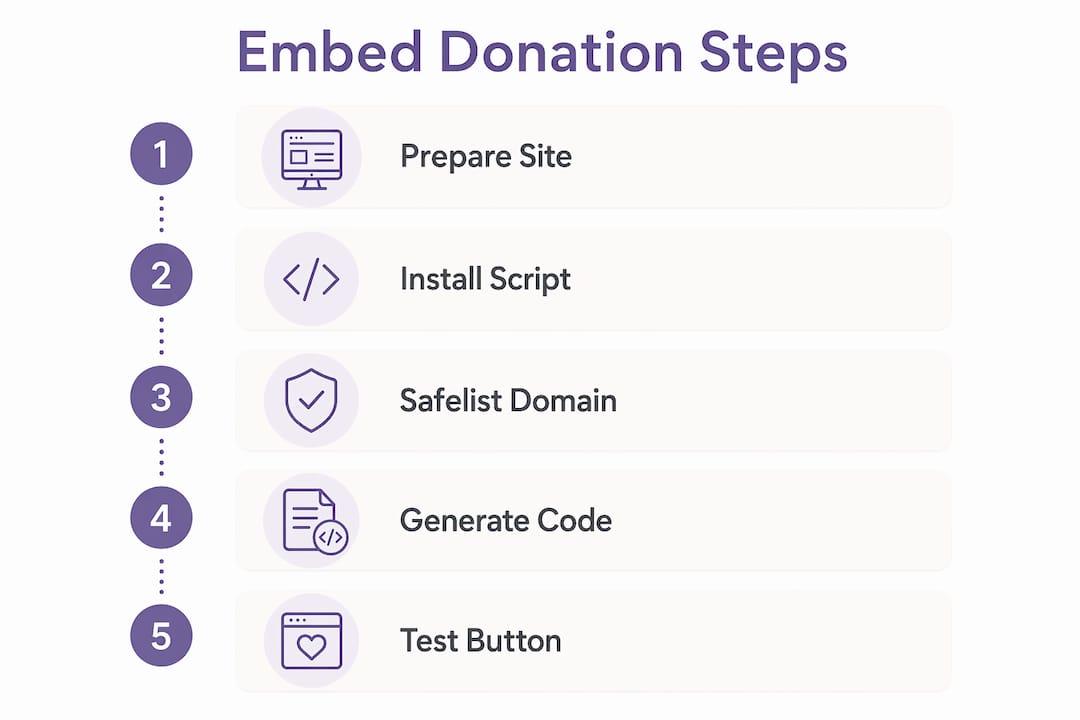
Platform compatibility. WordPress sites have the widest range of options, including Charitable, GiveWP, and PayPal SDK integration. Custom HTML sites can use JavaScript SDK embeds directly. Website builders like Weebly or Squarespace may restrict third-party scripts, so verify your plan allows custom code injection before committing to a platform.
Global script installation. Most embed systems require a snippet added once to your site’s global header, separate from the button code itself. GoFundMe Pro’s embedded donation form, for instance, requires an install snippet placed in the site head to make any embedded forms function. Missing this step is the single most frequent cause of broken embeds where the button renders but the form never opens.
Domain safelisting. Several platforms require you to register your nonprofit’s domain before their scripts will execute on it. Skipping domain safelisting causes silent failures that are difficult to diagnose after launch.
PCI DSS compliance. All nonprofits accepting online card payments must meet PCI DSS standards regardless of organization size or transaction volume. Using a hosted payment processor like PayPal or Stripe through your embed provider typically satisfies most PCI requirements, but you remain responsible for how donor data flows through your site.
Campaign and account setup. Before generating embed code, you need a live campaign or account configured on your chosen platform. PayPal requires either a hosted_button_id from your PayPal account or your registered business email. Charitable requires a published campaign with an assigned campaign ID. Every.org requires a verified nonprofit profile.
Pro Tip: Install your global script snippet in a tag manager like Google Tag Manager rather than hardcoding it into your theme files. This makes future updates or platform switches far easier to manage without touching your site’s core code.
Step-by-step: embedding with GoFundMe, Charitable, PayPal, and Every.org
The implementation process differs by platform, but the underlying logic is consistent: place a global script once, then place your button or widget code where you want it to appear.
Embedding with GoFundMe Pro
- Log into your GoFundMe Pro account and navigate to your campaign’s embed settings.
- Copy the install snippet and paste it into your website’s global "` section. In WordPress, use a plugin like Insert Headers and Footers or your theme’s header settings.
- Safelist your domain within the GoFundMe Pro dashboard under embed settings.
- Copy the campaign-specific embed code and paste it into the HTML block of the page or post where you want the form to appear.
- Publish the page and test the form on both desktop and mobile browsers.
Embedding with Charitable on WordPress
- Install and activate the Charitable plugin from the WordPress plugin directory.
- Create or select a published campaign and note its campaign ID.
- To use the Mini Donation Widget, add a Gutenberg block to your page and search for the Charitable widget block. Configure preset amounts, the campaign ID, and whether to show monthly giving options. The widget supports both modal and redirect modes via the cta_mode parameter.
- To use the Modal Donate Button, add the Campaign Modal Donate Button block or use the shortcode with your campaign ID. This triggers an AJAX-powered overlay when clicked.
- Preview on mobile to confirm the modal scales correctly on smaller screens.
Embedding with PayPal Donate SDK
- Log into your PayPal business account and create a donation button to obtain your hosted_button_id.
- Add the PayPal JavaScript SDK script to your page or global header, referencing the donate component.
- Add an empty
<div>container with a unique ID where you want the button to render. - Initialize the SDK with your hosted_button_id or business email and point it to the container ID.
- The SDK renders a customizable donate button that opens a PayPal pop-up overlay, keeping donors on your page during checkout.
Embedding with Every.org
Every.org offers the simplest embed path. Generate your button code from your Every.org nonprofit profile, then paste it into any HTML section of your site. The button displays as a text link or modal pop-up depending on the embed style you select. No global script is required, making it a strong option for sites with limited code access.
Pro Tip: After embedding, test your donation button using a real small transaction, not just a visual check. Many embed failures only surface during actual payment processing, not during preview.
How to optimize donation button placement for more conversions
Placement and design decisions directly affect how many visitors actually click your donate button. Prominent placement on every page, particularly in the upper right corner of your navigation, is the standard endorsed by Neon One and widely adopted across high-performing nonprofit sites. The upper right corner is where trained web users look for primary calls to action, so placing your donate button there reduces cognitive friction.
Beyond the header, place your donation button or inline widget in at least two additional locations: the homepage hero section and a dedicated giving page. Visitors arrive through different paths, and a donor who lands on your About page should not have to search for a way to give.
Design the button to stand out visually without clashing with your brand. Use a color that contrasts with your site’s background, keep the label direct (“Donate Now” or “Give Today”), and size the button so it is tappable on mobile screens without zooming. Mobile-friendly donation buttons are not optional. A significant share of nonprofit website traffic arrives on phones, and a button that is hard to tap loses real donations.
“Treat your embed style as a conversion decision, not just a design choice. Testing modal versus redirect behavior gives you measurable data on what your specific donor audience prefers.” — embed style as a conversion tactic
Avoid these common placement and design mistakes:
- Burying the donate button below the fold on your homepage
- Using low-contrast colors that make the button hard to read
- Linking the button to a redirect page when a modal embed is available
- Failing to test the embed on Safari and Firefox, not just Chrome
- Omitting the donate button from interior pages like program descriptions or blog posts
For donation funnel optimization, consider pairing your embedded button with a short impact statement directly above it. One sentence explaining what a $50 gift accomplishes gives donors a reason to act immediately rather than returning later.
Key takeaways
Embedding a donation button correctly requires a global script, domain safelisting, PCI-compliant payment processing, and strategic placement on every key page of your nonprofit site.
| Point | Details |
|---|---|
| Choose the right embed method | Modal popups retain donors on-site; redirect buttons carry the highest drop-off risk. |
| Install the global script first | Missing the site-wide snippet is the leading cause of buttons that appear but never load. |
| Safelist your domain | Register your nonprofit’s domain with your platform before testing any embed code. |
| Meet PCI DSS requirements | Use a hosted processor like PayPal or Stripe to satisfy most compliance obligations. |
| Optimize placement and design | Place the donate button in the header, hero section, and at least one interior page. |
What I’ve learned from years of nonprofit embed projects
After working on nonprofit websites since 2005 at Nonprofit-webdesign, the pattern I see most often is this: organizations spend weeks choosing a fundraising platform and then rush the technical integration in an afternoon. That’s where things break.
The two issues I encounter most are a missing global script and an unsafelisted domain. Both are invisible to the naked eye during a visual site review. The button looks fine. The page loads. But the moment a donor clicks, nothing happens. I’ve seen this cost organizations real donations during campaign launches, and it is entirely preventable with a pre-launch checklist.
My honest recommendation is to treat the embed as a two-layer system. Layer one is the visible button or widget. Layer two is the invisible infrastructure: the global script, the domain registration, and the payment processor configuration. Both layers must be in place before you go live.
I also push back on the instinct to use redirect buttons because they feel simpler. They are simpler to set up, but they consistently underperform modal embeds in donor completion rates. The extra 30 minutes it takes to configure a Charitable modal or a PayPal SDK overlay pays off in every campaign. Donors who stay on your site are more likely to complete a gift than donors who land on a third-party page and wonder if they’ve left your organization.
Finally, test with a real transaction. Not a preview. Not a sandbox mode. A real $1 donation through the live embed, on mobile, on at least two browsers. That single test catches more problems than any amount of visual checking.
— Matt
Get expert help with your nonprofit’s donation integration
Building a donation-ready website takes more than copying and pasting embed code. From configuring global scripts to testing payment flows and ensuring your site meets accessibility and security standards, the details matter.
Nonprofit-webdesign has specialized in purpose-driven web design for nonprofits since 2005. Whether you need a new site built around your fundraising goals or a redesign that brings your donation integration up to current standards, the team understands what nonprofit leaders need. Explore nonprofit website design services built to support your mission from day one, or review website redesign options that include donation button integration, accessibility compliance, and ongoing technical support.
FAQ
What is the easiest way to add a donation button to a website?
Every.org offers the simplest path: generate your embed code from your nonprofit profile and paste it into any HTML section of your site. No global script installation is required, making it accessible for sites with limited code access.
Why is my embedded donation button not working?
The most common causes are a missing global script in the site header and an unsafelisted domain. Both issues cause the button to appear visually but fail to open the donation form when clicked.
Do nonprofits need PCI compliance for embedded donation buttons?
Yes. All nonprofits accepting online card payments must meet PCI DSS standards regardless of size. Using a hosted processor like PayPal or Stripe through your embed typically satisfies most requirements, but your site’s data handling practices still apply.
What is the difference between a modal and a redirect donation button?
A modal button opens the donation form in an overlay on your current page using AJAX, keeping donors on your site. A redirect button sends donors to a separate hosted page, which increases the risk of drop-off before the gift is completed.
Can I embed a donation button on a non-WordPress website?
Yes. PayPal’s Donate SDK and Every.org buttons work on any site that allows custom HTML and JavaScript. GoFundMe Pro’s embed also functions on custom HTML sites once the install snippet is added to the global site header.